
Photo booth app for iPad and iPhone: your booth, ready with one code
PixsBooth is software for photo booth operators. The booth opens in Safari on the iPad or iPhone, with nothing to install: you connect it to your account once with a 6-digit code, and it stays connected for all your events. A dedicated iPad app is coming soon, with the operator menu and DSLR support.
- 100 free AI creations
- No credit card
- Hebrew, French, English
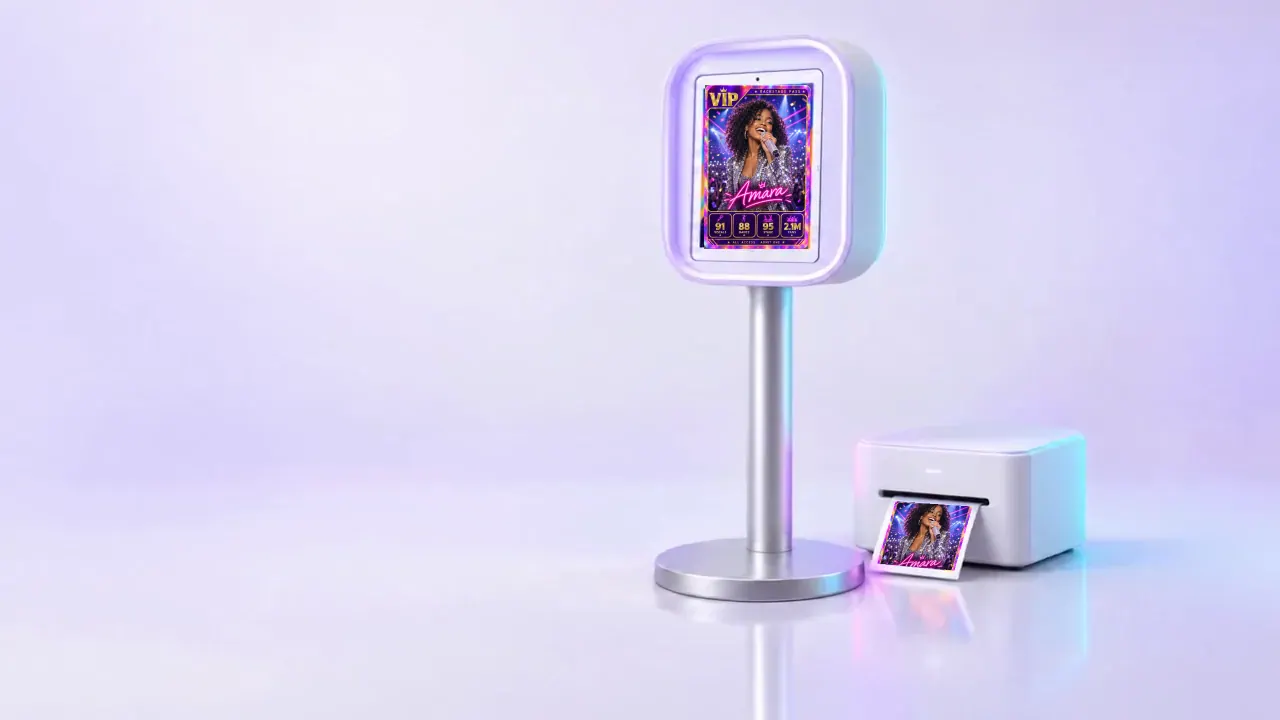

An iPad, and it's a booth
Pair with a code
Under Devices, a 6-digit code appears, valid for 10 minutes. Enter it on the booth and the iPad is linked to your account for good.
Full screen, like a real booth
Add the booth to the Home Screen from Safari: no more address bar. The iPad's Guided Access keeps guests from leaving it.
Printing without cables
The iPad is never plugged into the printer: it sends, and Print Station prints from the computer connected to your DNP, HiTi or Epson.
Straight to their phone
On the result screen, guests get their creation by QR code, text, email or AirDrop, on top of their print.
Connect the iPad in a minute
- In the dashboard, open Devices and click "Connect an iPad".
- On the iPad, open the booth link in Safari, or scan its QR code from "Links & QR".
- Enter the 6-digit code, then tap Connect.
- Add the booth to the Home Screen to open it full screen.
- Do a run in test mode, then open the booth to guests.
Good to know
- Devices
- iPad or iPhone, the same way
- Install
- Nothing today: the booth opens in Safari
- Pairing
- 6-digit code, valid for 10 minutes, single use
- iPads per plan
- Discovery and Essential: 1 · Pro: 3 · Studio: unlimited · Trial: 3
- Printing
- Print Station on Mac (M1 chip or newer) or Windows 10/11
- Sharing
- QR code, text, email, AirDrop
The PixsBooth iPad app is coming soon. Until then, Safari does all the work.
The operator menu and DSLR support
PIN-protected operator menu
A hidden menu, opened with the ⚙ button or three fingers held for 3 seconds, and locked by your 4-digit PIN. Guests never see it.
Adjust everything without a computer
Print Station status, prints in the queue, AI creations left, battery; switch events, open test mode, set auto-print and print limits.
Front, back or DSLR camera
The camera choice stays on that iPad, for all your events.
Canon DSLR over USB
No SD card needed: the photo goes straight to the iPad or iPhone. Shutter mode for self-service, or Manual when a photographer runs the booth. If the DSLR disconnects, the booth carries on with the iPad camera.
Questions about the app
Do I need to download an app on the iPad?
No. Today the booth opens in Safari and connects to your account with a 6-digit code. A dedicated iPad app is coming soon.
Does the booth work on iPhone?
Yes, the same way as on iPad.
How many iPads can I connect?
One on Discovery and Essential, three on Pro and during the trial, unlimited on Studio. You can remove an iPad anytime under Devices.
How do I stop guests from leaving the booth?
Open the booth from the Home Screen for full screen, and turn on Guided Access in the iPad's accessibility settings.
Can I use a DSLR camera?
A Canon DSLR connected over USB is set up from the operator menu of the PixsBooth iPad app, which is coming soon. You'll need a USB adapter for the iPad or iPhone.
Does the iPad need to be plugged into the printer?
No. Everything goes through your account: the iPad sends, and Print Station prints from the computer connected to the printer.
Try it at your next event
Create your account, set up an event and connect the iPad with a 6-digit code. 14-day trial, 100 AI creations included, no credit card.